
The referral program rewards you when another business joins Fiscora through your link and reaches the qualifying spend threshold. Manage your link and track progress from Referrals in the sidebar. See how to manage your subscription for billing context.
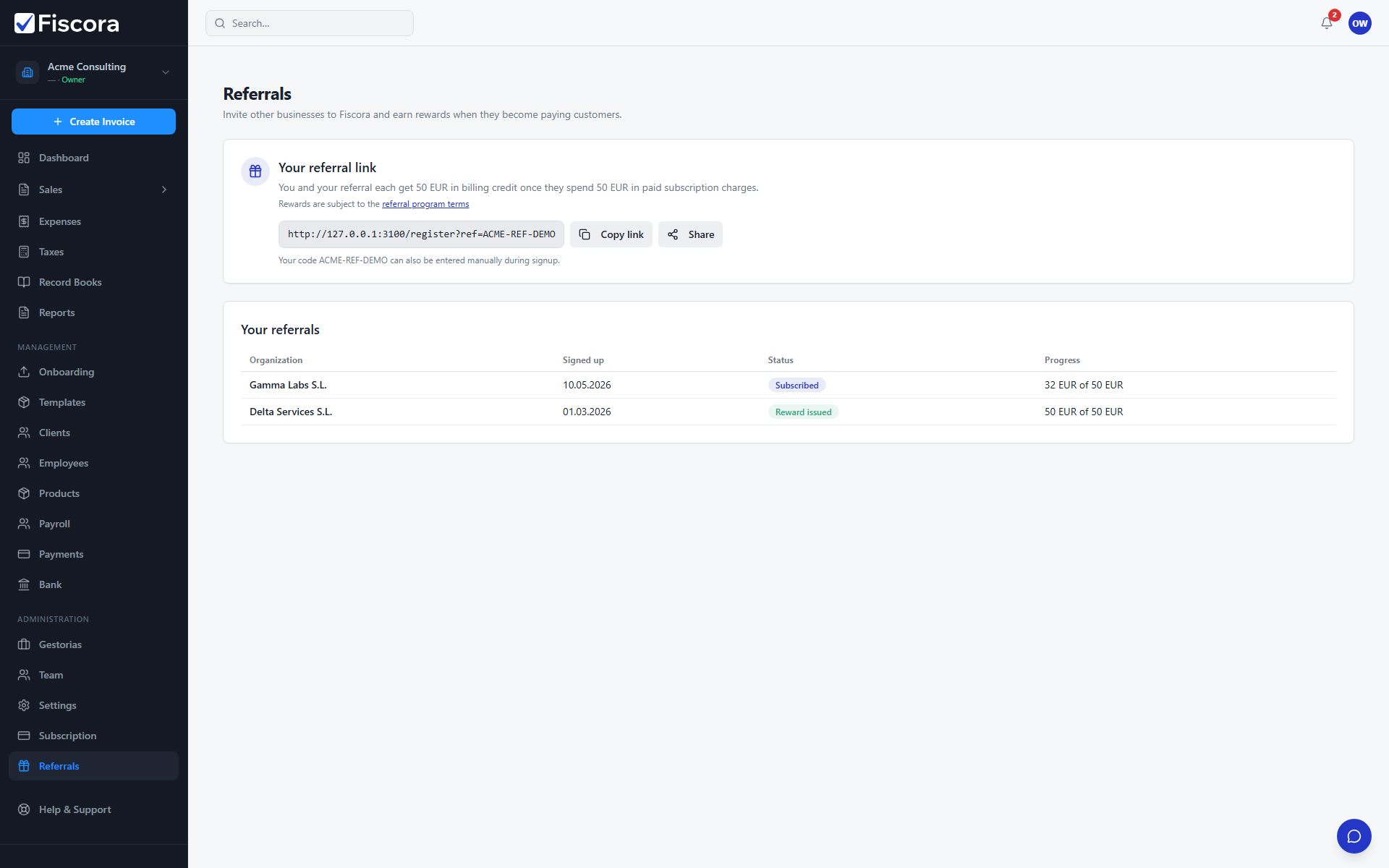
Open Referrals
- Select Referrals in the left sidebar.
- Review the active reward mode and threshold shown at the top of the page.
Get and share your link
- If you do not have a link yet, select Generate my referral link.
- Copy the full URL or use Share on supported devices.
- Your referral code can also be entered manually during signup if the link is not used.
- Read the linked referral program terms at /legal/referidos before sharing widely.
Track referral status
- The Your referrals table lists each invited organization.
- Status moves from Signed up → Subscribed → Threshold reached → Reward issued as qualifying subscription spend accumulates.
- The Progress column shows spend toward the threshold (excluding VAT, refunds, and failed payments).
- Rewards may be withheld or reversed if abuse is detected; flagged cases are reviewed manually.
How rewards are applied
- Depending on the active program mode, you may receive billing credit, a free month, or both parties may receive credit.
- Credits apply automatically to upcoming subscription invoices and have no cash value.
- Keep your organization details up to date under organization settings so rewards apply to the correct account.