
Organization settings

How to update company legal details

Keep legal name, tax ID, company type, and billing address current in organization settings.

1 min readUpdated 10.07.2026

Your company legal details appear on invoices and other business records. Review them whenever your business registration, tax ID, or billing address changes. For the settings overview, see how to update organization settings.
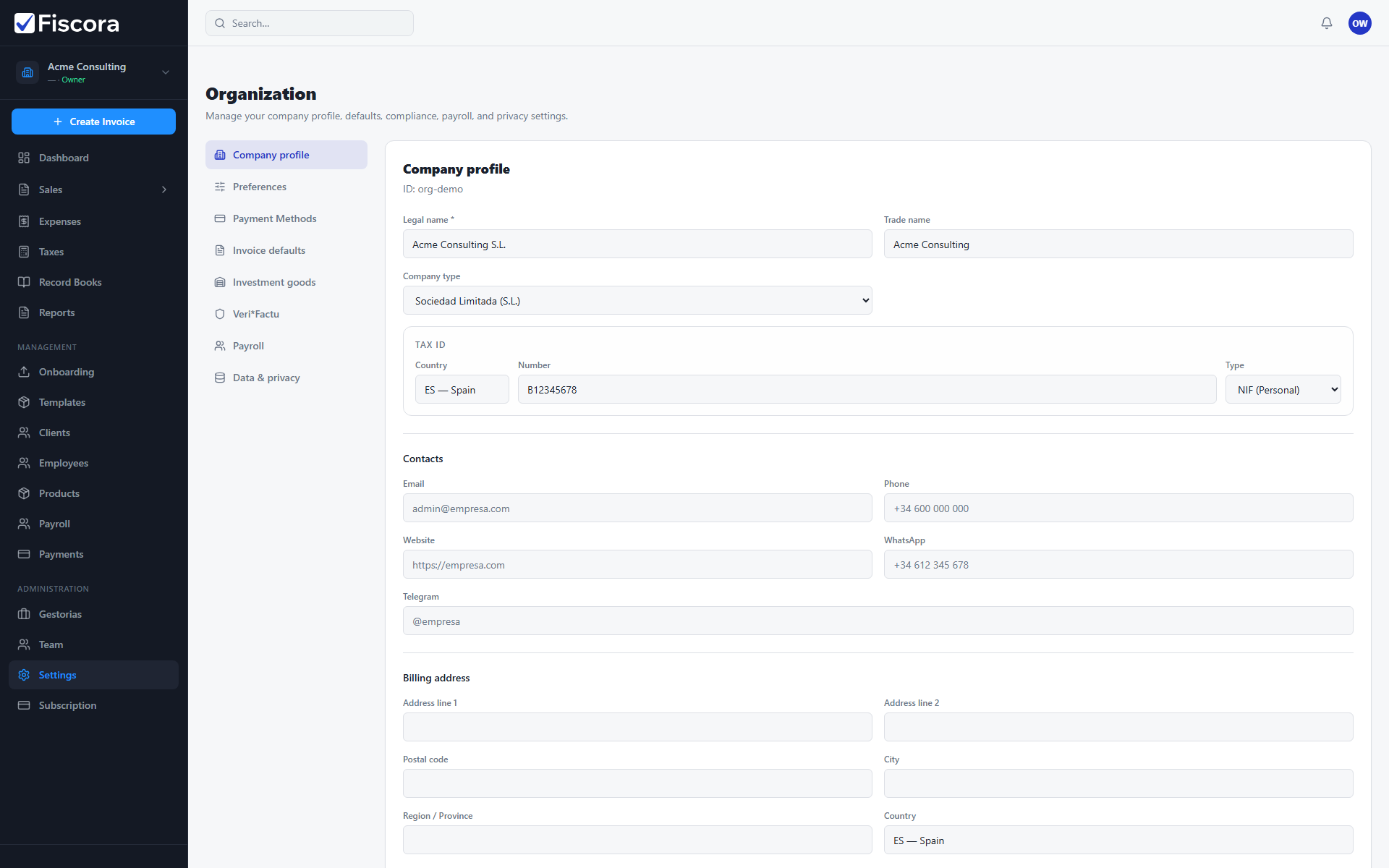
Organization settings showing legal name, tax ID, and billing address fields.
  1. Open Settings in the left navigation.
  2. Stay on the Company profile section.
  3. Review and update Legal name, Trade name, and Company type.
  4. Confirm your Tax ID and billing address are correct.
  5. Update contact details such as email and phone if they changed.
  6. Select Save after making changes.

Why this matters

  1. Issued invoices use these details on the PDF and in compliance records.
  2. Accurate legal data reduces rework when customers, banks, or your gestoria review documents — see how to manage branding and contact details for contact fields on PDFs.
  3. Review these fields before issuing your first real invoice in a new workspace — see day-one setup for the full checklist.

Was this article helpful?

Still need help?

Share the context and we'll reply with practical guidance from support.

Open request

You may also find these useful

Organization settings

How to update organization settings

Review your legal company profile and contact details so new invoices are issued with accurate business information.

Read article
Organization settings

How to change invoice defaults

Set default series, payment terms, and other invoice presets so new documents start with the right values.

Read article
Organization settings

How to configure tax and financial preferences

Set VAT presets, default IRPF withholding, and investment-goods rules so invoices and expense reporting match your tax setup.

Read article