
Customers see your company contact details and invoice layout on every PDF you send. Update both in organization settings — see how to update company legal details — and invoice templates so issued documents look professional.
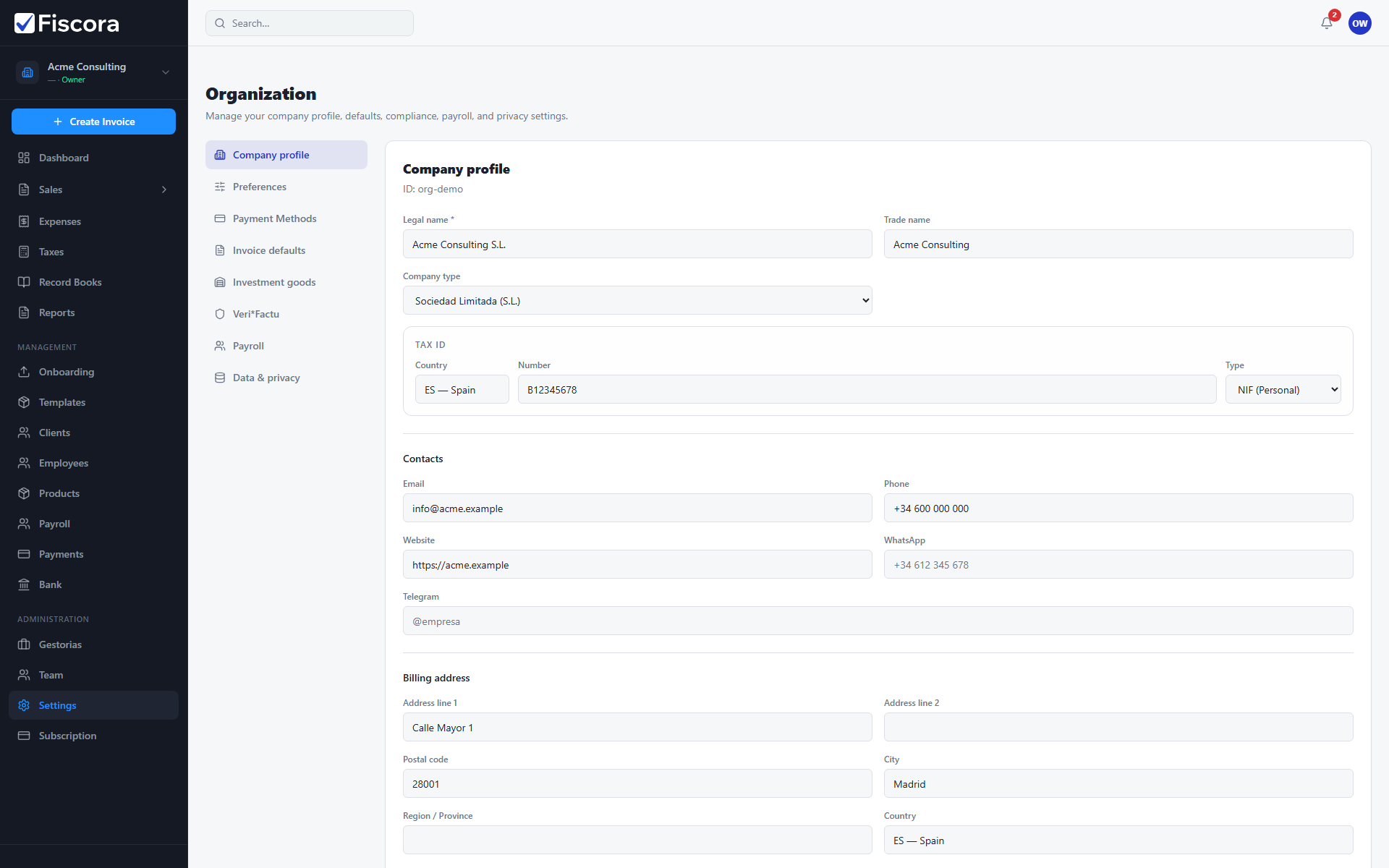
Update contact details
- Select Settings in the left navigation.
- Open the Company section.
- Under Contacts, enter email, phone, website, and optional messaging channels.
- Complete the billing address fields used on invoices.
- Select Save.
Customize invoice PDF branding
- Open Templates under Management in the sidebar.
- Create a template or edit an existing one.
- Upload or paste your company logo URL and adjust accent color or layout options shown in the editor.
- Set the template as default if you want new invoices to use it automatically.
Review invoice defaults
- Return to Settings and open Invoice defaults — see how to change invoice defaults.
- Confirm the default PDF template style matches the branding you want on new invoices.
- Save changes before issuing invoices to real clients.