
Invoices

How to create a quote

Prepare a customer quote with line items, validity dates, and optional terms before sending.

1 min readUpdated 10.07.2026

Quotes capture proposed pricing before you issue a formal invoice. See how to send a quote, how to accept a quote, and how to convert a quote to invoice.
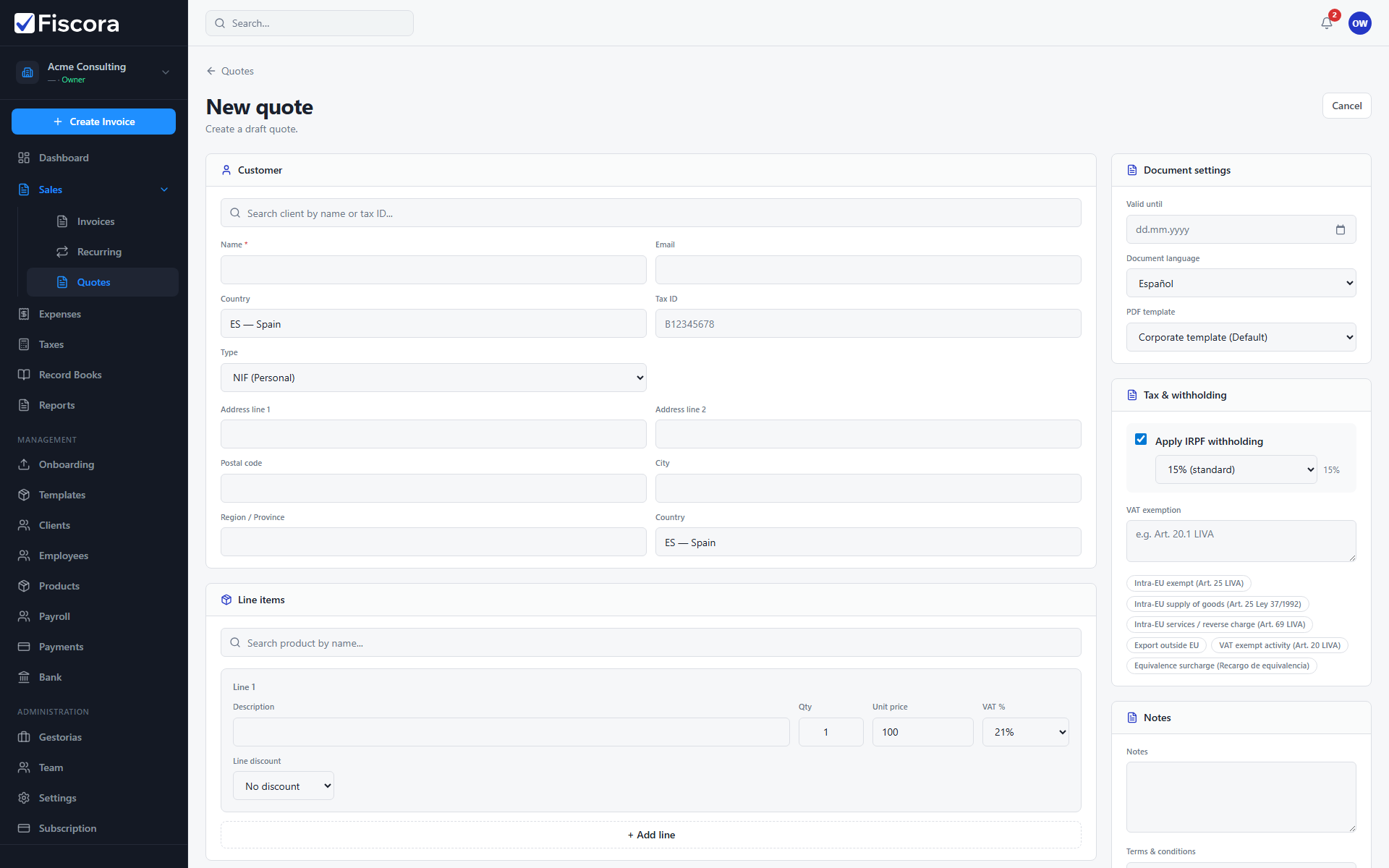
New quote editor with client selector and create action.

Open the quote editor

  1. Expand Sales in the left navigation.
  2. Select Quotes and then New quote.

Add customer and lines

  1. Choose the customer or enter client details for the quote.
  2. Set issue date and valid-until date.
  3. Add products or services with quantities, prices, and VAT.

Save or send

  1. Select New quote to save the draft.
  2. Review totals and send the quote when the customer should approve pricing.
  3. Convert accepted quotes to invoices without re-entering line items.

Was this article helpful?

Still need help?

Share the context and we'll reply with practical guidance from support.

Open request

You may also find these useful

Invoices

How to view and manage invoices

Use the invoices list to search, filter by status, and open the invoice you need to review or follow up.

Read article
Invoices

How to create and edit an invoice

Start a new invoice from the invoices area, complete the client and line items, and save or issue it when you are ready.

Read article
Invoices

How to start a new invoice

Open the invoice editor, choose a client, add lines, and save a draft before issuing.

Read article