
Invoices

How to start a new invoice

Open the invoice editor, choose a client, add lines, and save a draft before issuing.

1 min readUpdated 10.07.2026

The new invoice editor is the fastest way to begin billing when you already know the client and services. Save as a draft any time and return later to issue.
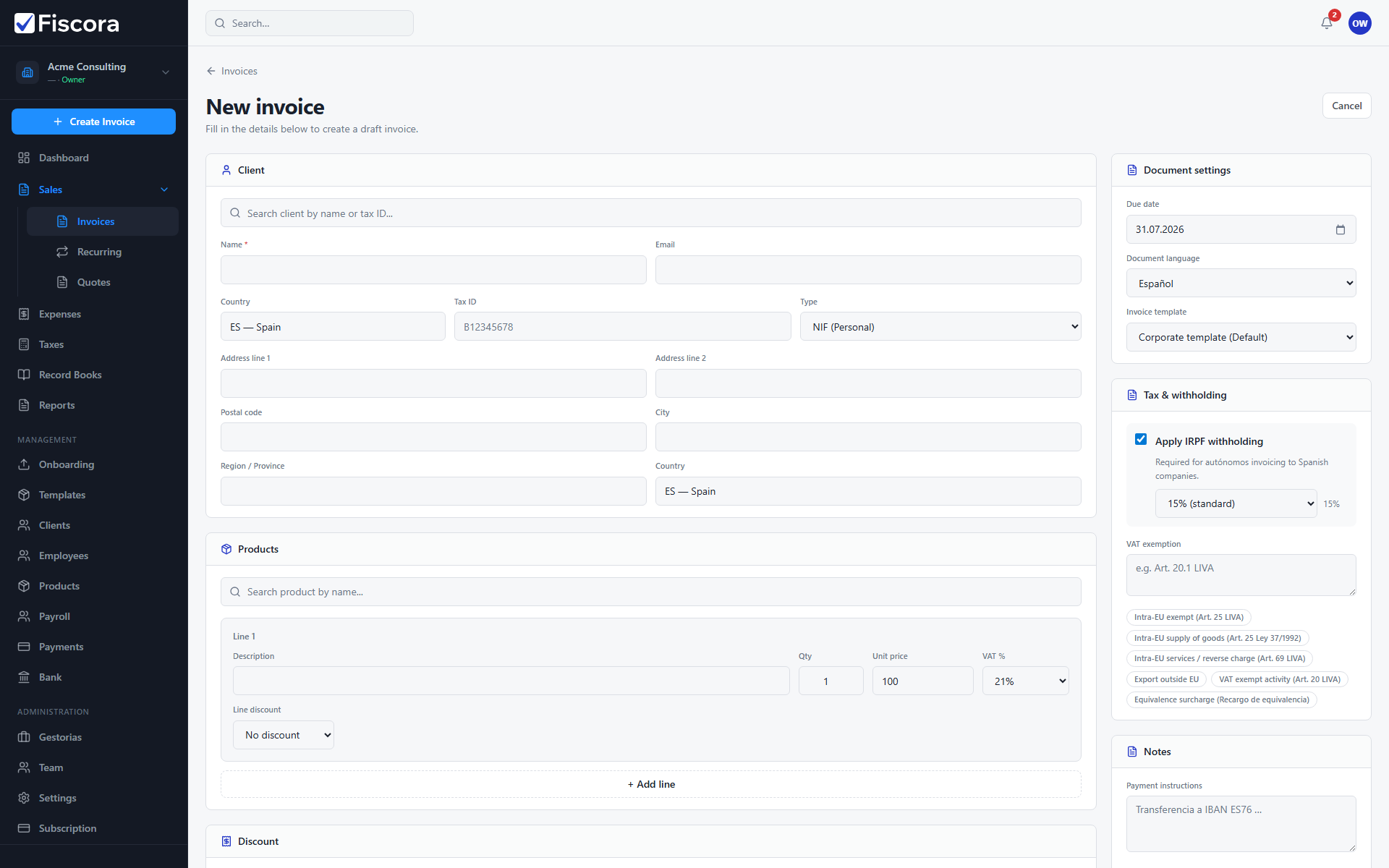
New invoice editor with Create Invoice action.

Open the editor

  1. Select SalesInvoices, then Create invoice.
  2. Alternatively open /app/invoices/new from quick links when available.

Fill the draft

  1. Search or enter the client name and tax details. If the customer is not in the list yet, create the client first.
  2. Set issue date, due date, and currency if needed.
  3. Add products or manual line items with VAT and optional IRPF retention — see how to create a product to build your catalog.

Save before issuing

  1. Select Create invoice to save the draft.
  2. Reopen the draft from the invoices list when you are ready to issue or send it.
  3. For a full walkthrough of the editor, see how to create and edit an invoice.

Was this article helpful?

Still need help?

Share the context and we'll reply with practical guidance from support.

Open request

You may also find these useful

Invoices

How to view and manage invoices

Use the invoices list to search, filter by status, and open the invoice you need to review or follow up.

Read article
Invoices

How to create and edit an invoice

Start a new invoice from the invoices area, complete the client and line items, and save or issue it when you are ready.

Read article
Invoices

How to issue an invoice

Complete a draft invoice and issue it to assign the official number and generate the PDF.

Read article