
Invoices

How to edit a recurring invoice

Open a recurring schedule to update client, lines, automation, and generated invoice history.

1 min readUpdated 10.07.2026

Recurring invoice templates store the client, billing lines, and automation rules used for each scheduled run. See how to create a recurring invoice and how to manage recurring invoices.
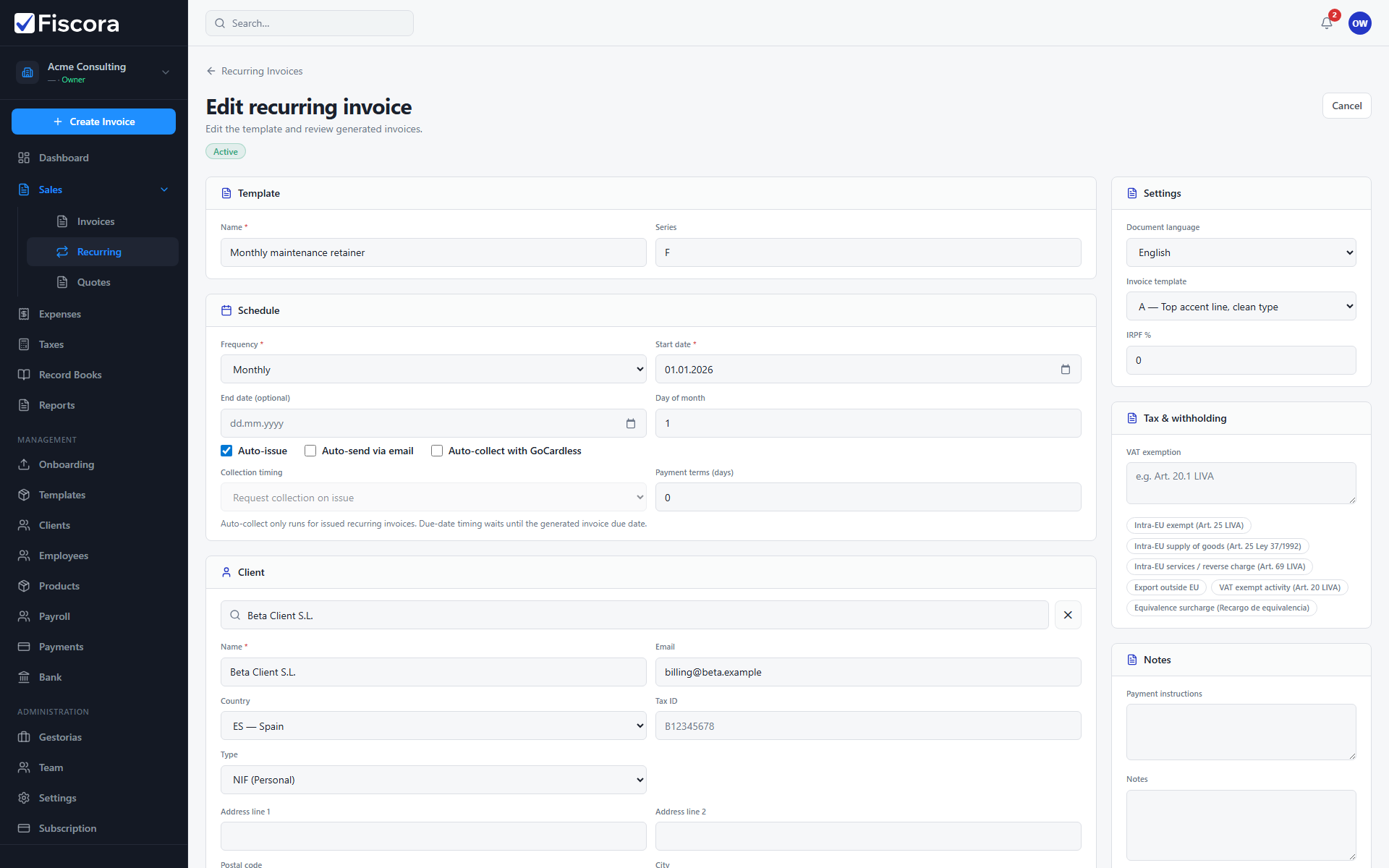
Edit recurring invoice screen with client snapshot and Save action.

Open the template

  1. Select SalesRecurring.
  2. Open the recurring invoice you want to change.

Update schedule and lines

  1. Adjust name, frequency, start date, and day-of-month settings.
  2. Update client details or line items as needed.
  3. Review auto-issue and auto-send options before saving.

Save changes

  1. Select Save to store the updated template.
  2. Review generated invoices in the history section when troubleshooting past runs.

Was this article helpful?

Still need help?

Share the context and we'll reply with practical guidance from support.

Open request

You may also find these useful

Invoices

How to view and manage invoices

Use the invoices list to search, filter by status, and open the invoice you need to review or follow up.

Read article
Invoices

How to create and edit an invoice

Start a new invoice from the invoices area, complete the client and line items, and save or issue it when you are ready.

Read article
Invoices

How to start a new invoice

Open the invoice editor, choose a client, add lines, and save a draft before issuing.

Read article