
Invoices

How to filter and search invoices

Find invoices quickly by number or client name, and switch between status tabs to focus on drafts, issued, sent, or paid documents.

1 min readUpdated 10.07.2026

The invoices list combines search, status tabs, and card or table views so you can locate the document you need without scrolling through every record. See how to view and manage invoices for the full list overview.
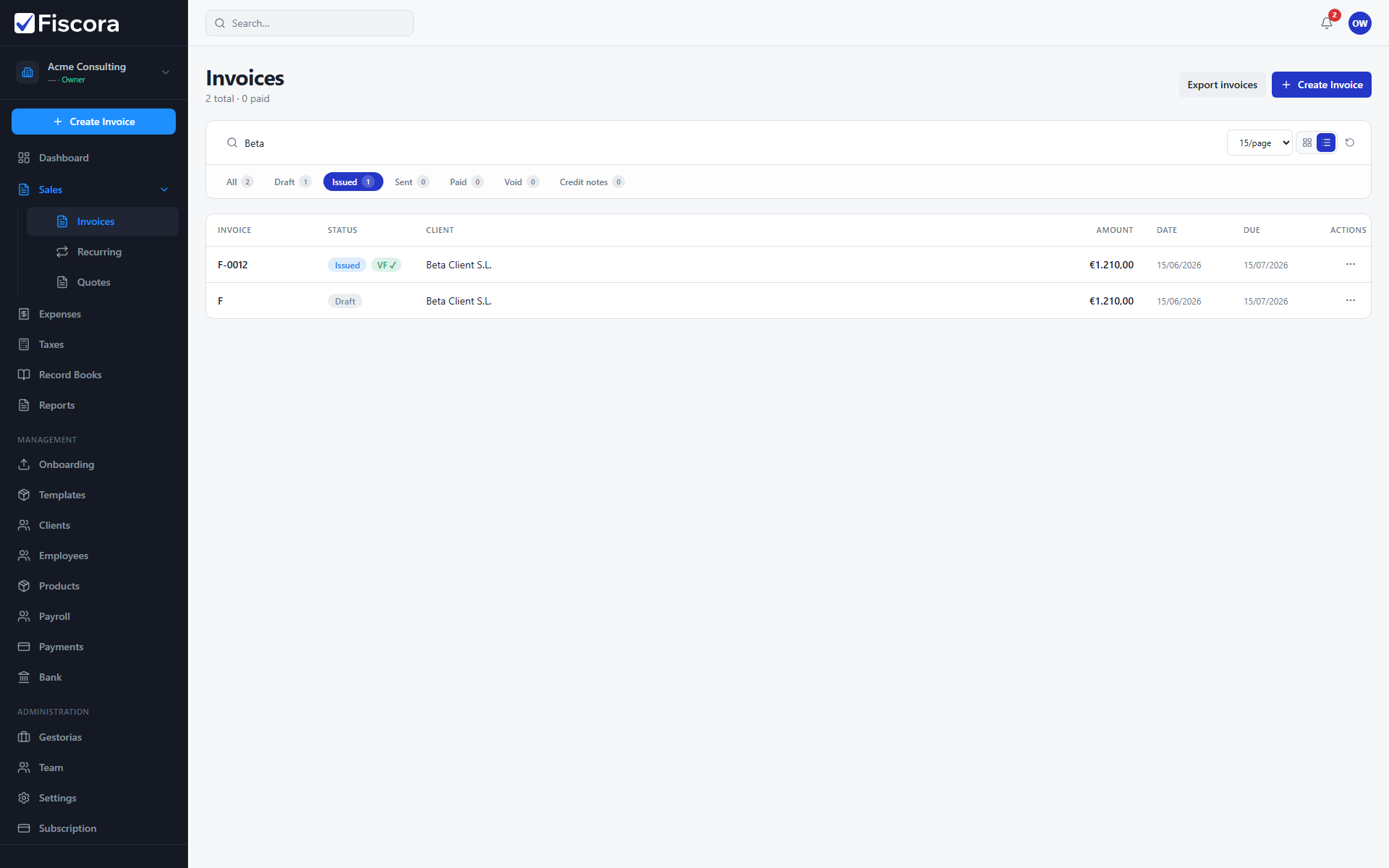
Invoices list with search field, Issued status tab selected, and filtered results.

Search by number or client

  1. Open Sales and then Invoices.
  2. Type in the search field at the top of the list.
  3. Search matches invoice numbers and client names.
  4. Clear the search field to return to the full list.

Filter by status

  1. Use the status tabs above the list to show all invoices or only drafts, issued, sent, paid, or other statuses.
  2. Status counts help you see how many documents are in each stage.
  3. Combine status tabs with search when you need a narrower result.

Change list view

  1. Switch between card and table view using the icons next to the page-size control.
  2. Table view is helpful when you need row actions such as send, mark paid, or credit note.
  3. Adjust items per page if you work with long invoice histories.

Was this article helpful?

Still need help?

Share the context and we'll reply with practical guidance from support.

Open request

You may also find these useful

Invoices

How to view and manage invoices

Use the invoices list to search, filter by status, and open the invoice you need to review or follow up.

Read article
Invoices

How to create and edit an invoice

Start a new invoice from the invoices area, complete the client and line items, and save or issue it when you are ready.

Read article
Invoices

How to start a new invoice

Open the invoice editor, choose a client, add lines, and save a draft before issuing.

Read article