
A credit note adjusts an invoice that was already issued. Use it when you need to refund, correct, or partially reverse a customer invoice without deleting the original document. The source invoice must be issued first — see how to view and manage invoices for the list.
When you can create a credit note
- The original invoice must be issued or sent — not a draft.
- Credit notes, void invoices, and Veri*Factu test invoices cannot be used as the source.
- You need write access to invoices in your organization.
Create the credit note
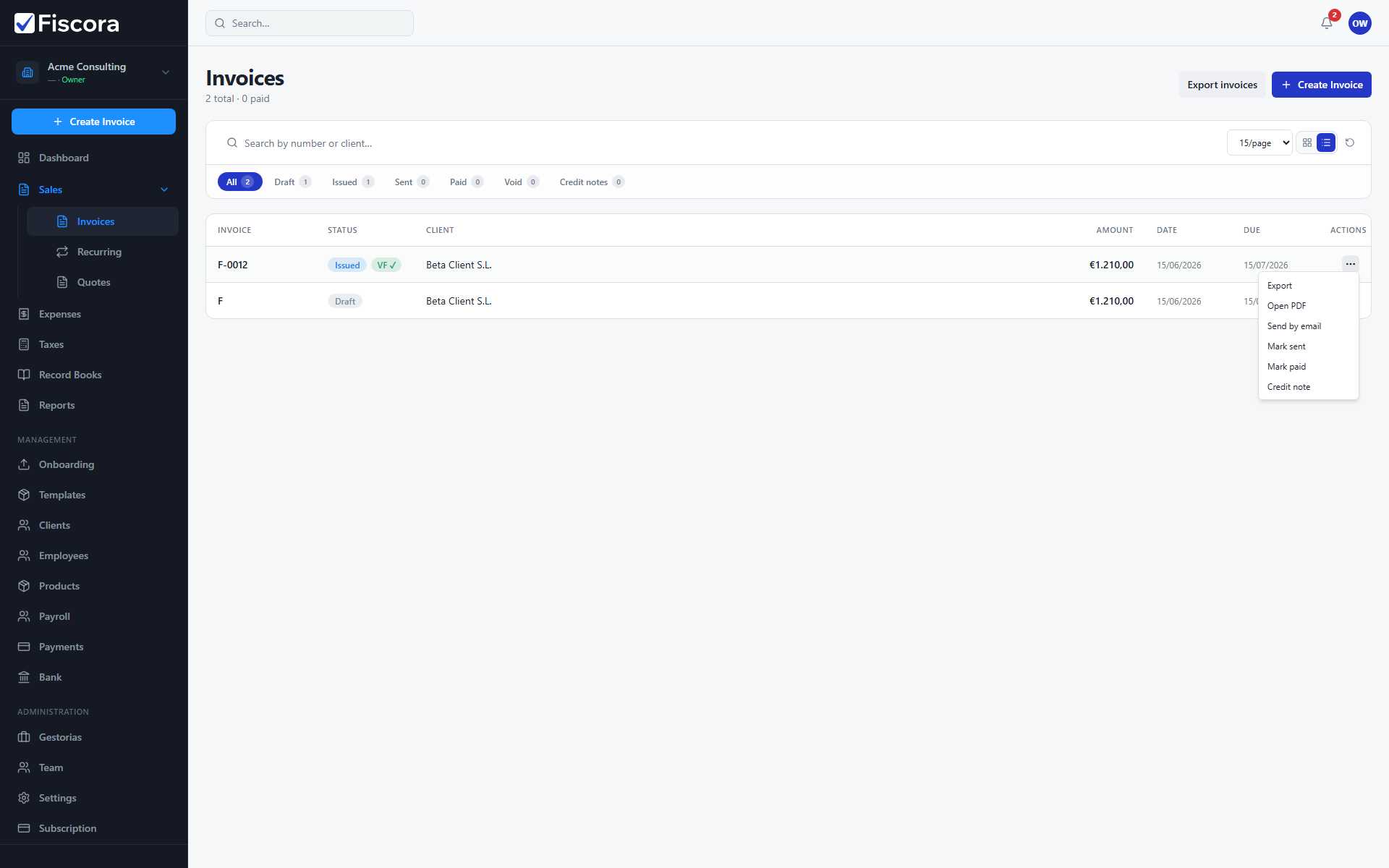
- Open Sales and then Invoices.
- Find the invoice you want to adjust.
- Open the row actions menu (three dots) for that invoice.
- Select Credit note.
- Confirm the action when prompted.
- Fiscora creates a linked credit note you can review and issue.
After creation
- Open the new credit note to verify amounts, client details, and line items.
- Issue the credit note when the data is correct so it appears in your records and reports.
- If the customer already paid, see how to mark an invoice as paid on the original invoice.