
Quotes let you share pricing before issuing a formal invoice. See how to create a quote, how to send a quote, and how to convert a quote to invoice.
Open quotes
- Expand Sales in the left navigation.
- Select Quotes.
- Review status tabs such as draft, sent, accepted, and converted.
Create a quote
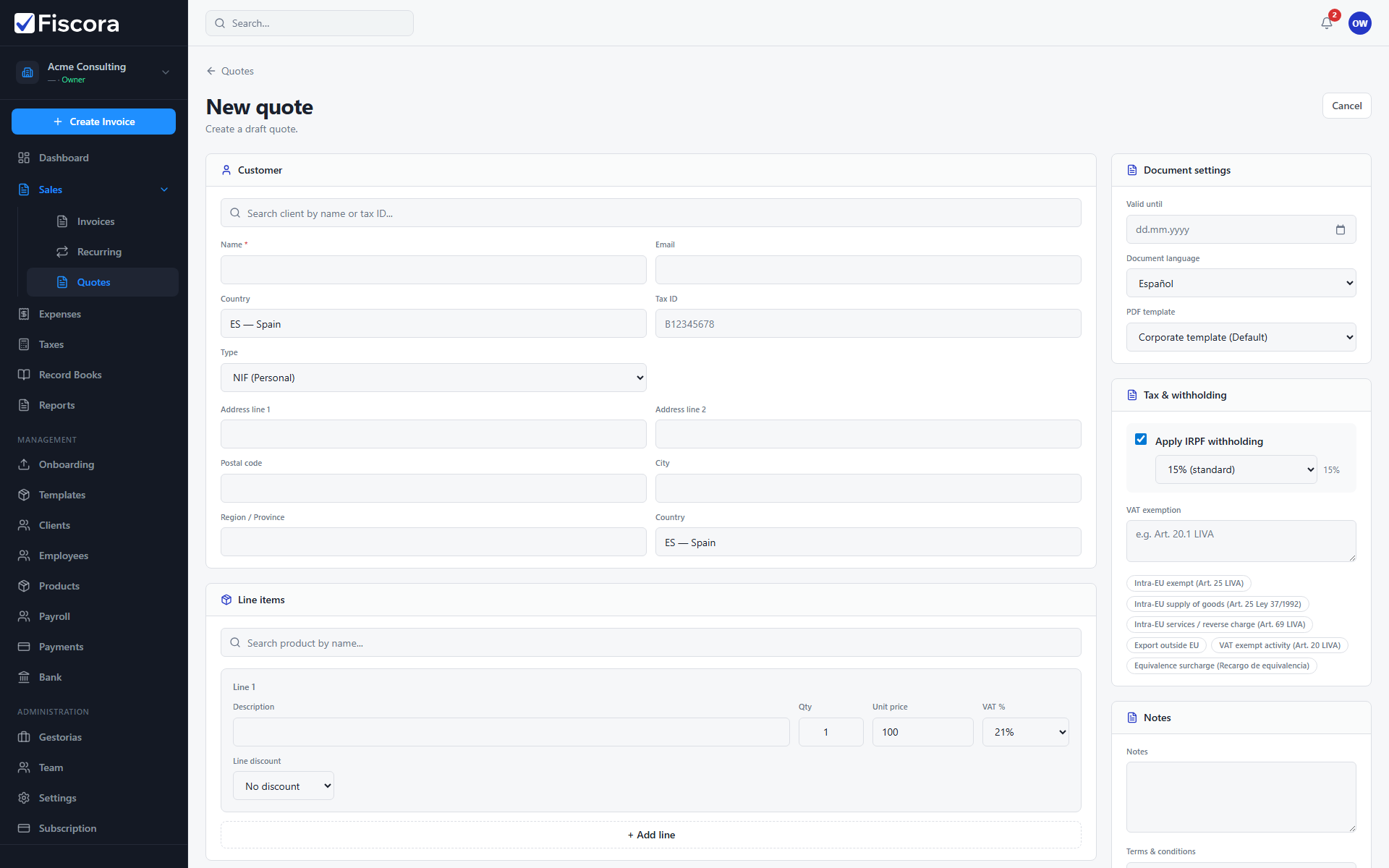
- Select New quote.
- Choose the customer and add line items, VAT, and optional terms.
- Save the quote as a draft while you finish the details.
- Send the quote when the customer should review it.
After sending
- Mark a quote as Accepted or Rejected when the customer responds.
- Use Convert to invoice on sent or accepted quotes to create a draft invoice.
- Open the converted invoice to issue and send it like any other bill.