
Invoices

How to duplicate an invoice

Create a new invoice using the same client and line details as a previous invoice when you bill recurring or similar work.

1 min readUpdated 10.07.2026

When you need another invoice like one you already issued, open the original as a reference and create a new invoice with the same client and line items. See how to use an issued invoice as reference or how to start a new invoice to begin.
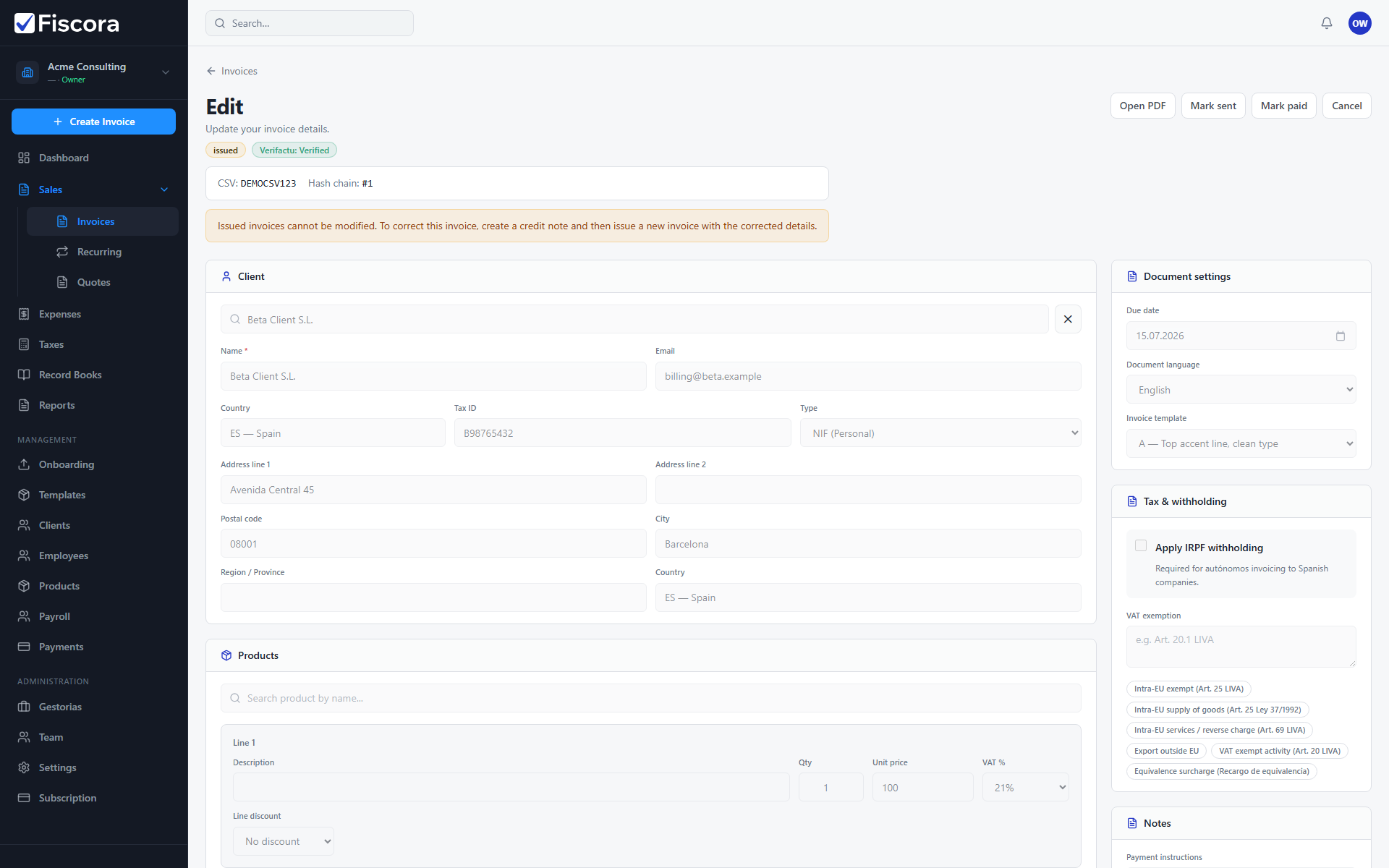
Invoice detail view you can use as a reference while creating a new invoice.

Use the original invoice as reference

  1. Open Sales and then Invoices.
  2. Open the invoice you want to copy from.
  3. Note the client, line descriptions, quantities, prices, and VAT settings.

Create the new invoice

  1. Select Create invoice from the invoices list.
  2. Choose the same client as the reference invoice.
  3. Add line items matching the original, adjusting dates, descriptions, or amounts as needed.
  4. Review totals and payment terms before issuing the new invoice.
  5. Issue the invoice when you are ready to send it to the customer.

Was this article helpful?

Still need help?

Share the context and we'll reply with practical guidance from support.

Open request

You may also find these useful

Invoices

How to view and manage invoices

Use the invoices list to search, filter by status, and open the invoice you need to review or follow up.

Read article
Invoices

How to create and edit an invoice

Start a new invoice from the invoices area, complete the client and line items, and save or issue it when you are ready.

Read article
Invoices

How to start a new invoice

Open the invoice editor, choose a client, add lines, and save a draft before issuing.

Read article