
Expenses

How to upload a receipt or bill

Add supplier documents through Scan / Upload so Fiscora can read them with AI, or enter an expense manually.

1 min readUpdated 10.07.2026

The fastest way to register a supplier expense is to upload the receipt or invoice file. Fiscora processes the document and prepares it for review — see how to record and review expenses for the full workflow.
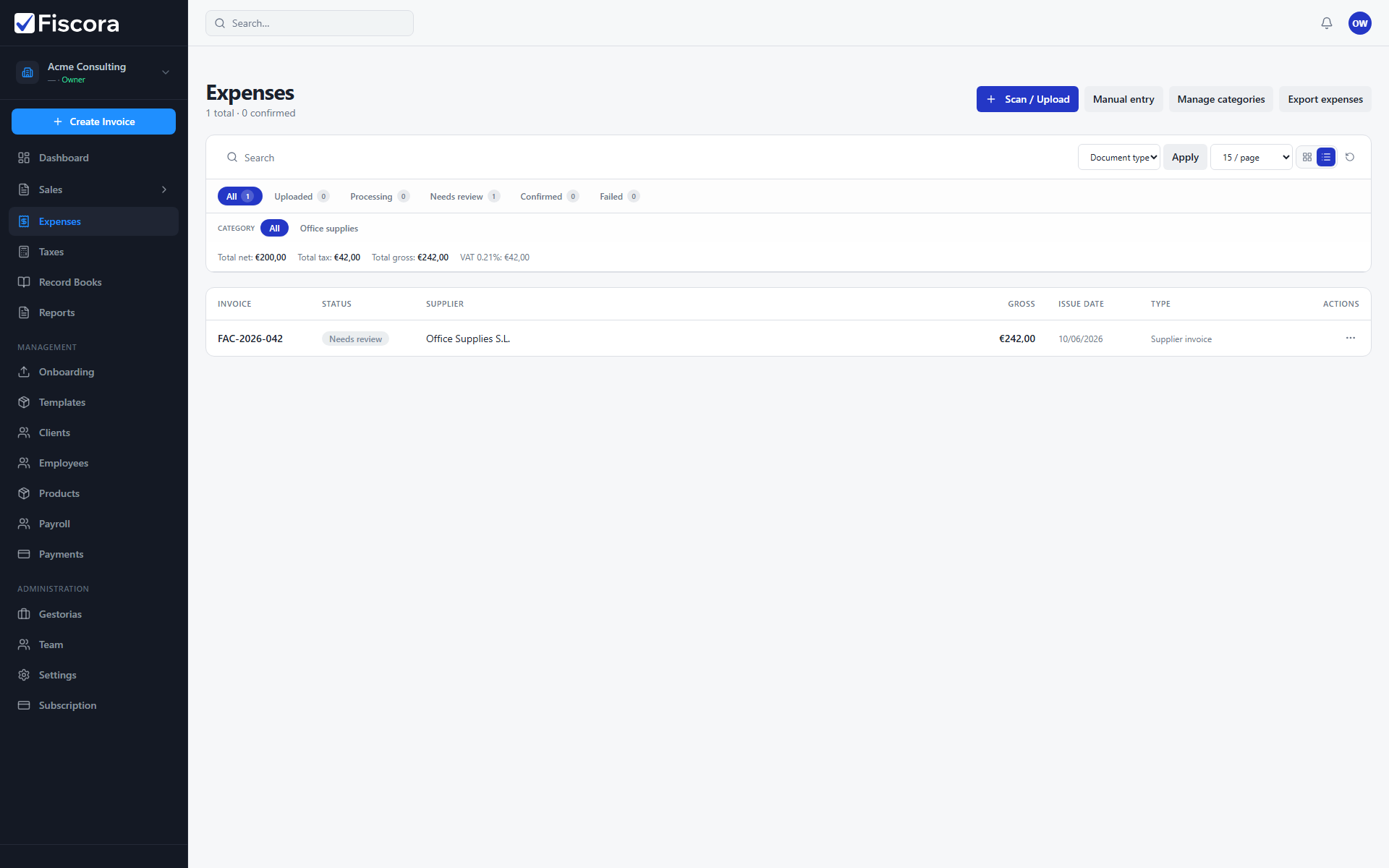
Expenses list with Scan / Upload and Manual entry actions.

Upload with Scan / Upload

  1. Select Expenses in the left navigation.
  2. Select Scan / Upload.
  3. Choose one or more files. Supported formats include PDF and image files.
  4. Wait while the document moves through Uploaded and Processing status.
  5. Open the expense when it reaches Needs review to check AI results — see how to review AI results.

Enter an expense manually

  1. Select Manual entry instead if you prefer to type the details yourself — see how to enter an expense manually.
  2. Fill in supplier, amounts, and dates directly.
  3. Save the expense and confirm it when the data is complete.

Was this article helpful?

Still need help?

Share the context and we'll reply with practical guidance from support.

Open request

You may also find these useful

Expenses

How to record and review expenses

Track uploaded receipts and supplier invoices, then review which expenses still need attention before confirmation.

Read article
Expenses

How to enter an expense manually

Create a supplier expense without uploading a document by filling the manual entry form.

Read article
Expenses

How to review AI results

Check extracted supplier data, fix anything the AI missed, and confirm the expense.

Read article