
After AI processing, expenses move to Needs review. This is your chance to verify supplier name, tax ID, amounts, and dates before confirming the expense. See how to upload a receipt or bill if you have not uploaded yet.
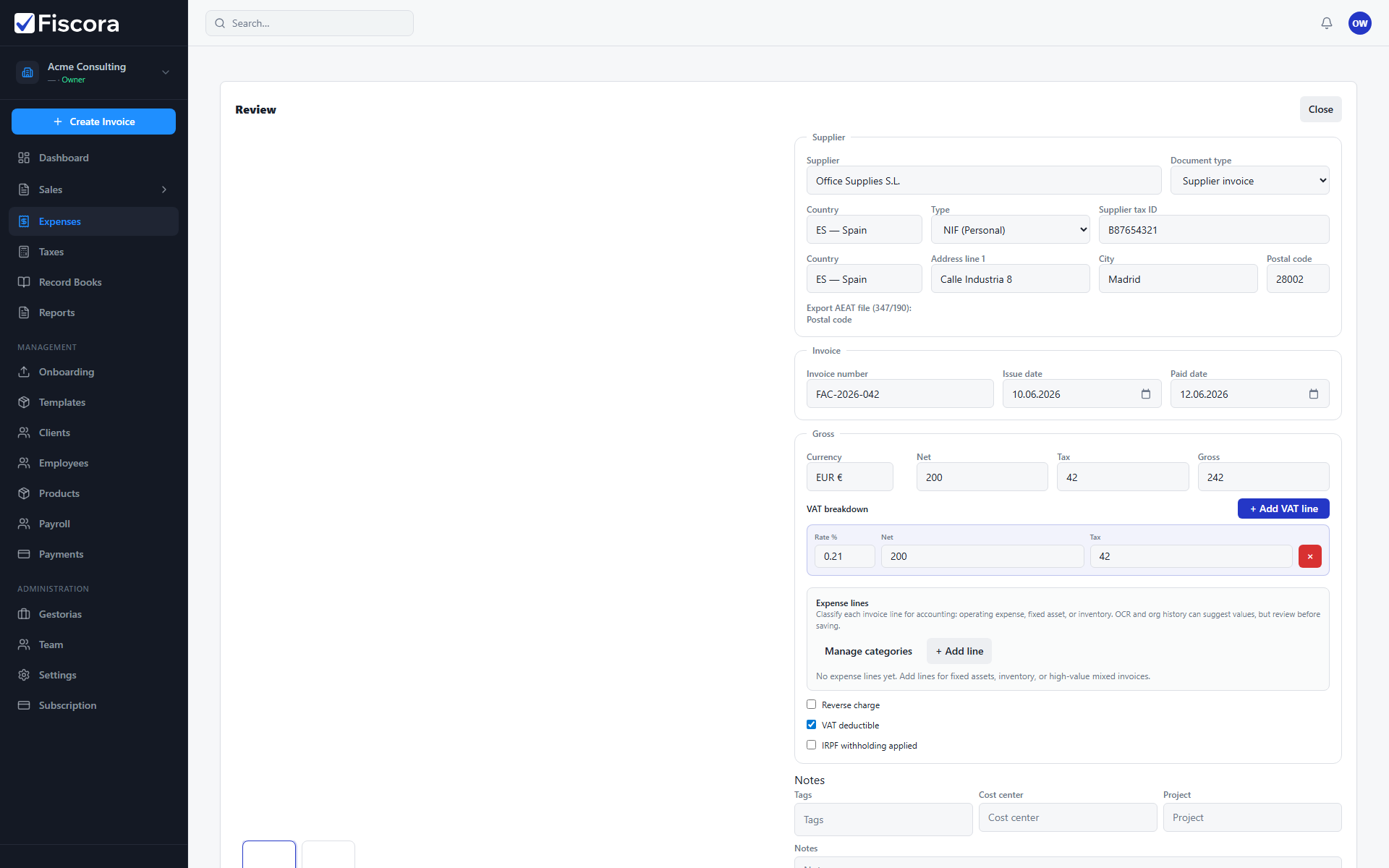
Open an expense for review
- Select Expenses in the left navigation.
- Use the status filter to show Needs review items — see how to filter expenses by status.
- Open the expense you want to check.
- Compare the uploaded document with the extracted fields.
Fix and confirm
- Correct supplier details, invoice number, dates, or VAT amounts if the AI read them incorrectly — see how to fix an expense with missing data for common gaps.
- Review VAT breakdown and line items when they are available.
- Save your changes if you are not ready to confirm yet.
- Select Confirm when the expense data is accurate.
- Confirmed expenses move to reporting and export workflows.
If AI extraction fails
- Expenses with a Failed status could not be processed automatically.
- Open the expense and enter the details manually, or upload a clearer copy of the document.