
Expenses

How to filter expenses by status

Use status tabs to focus on expenses that need review, are confirmed, or failed processing.

1 min readUpdated 10.07.2026

Status tabs separate uploaded, processing, review, confirmed, and failed expenses. See how to upload a receipt or bill, how to review AI results, and how to confirm an expense.
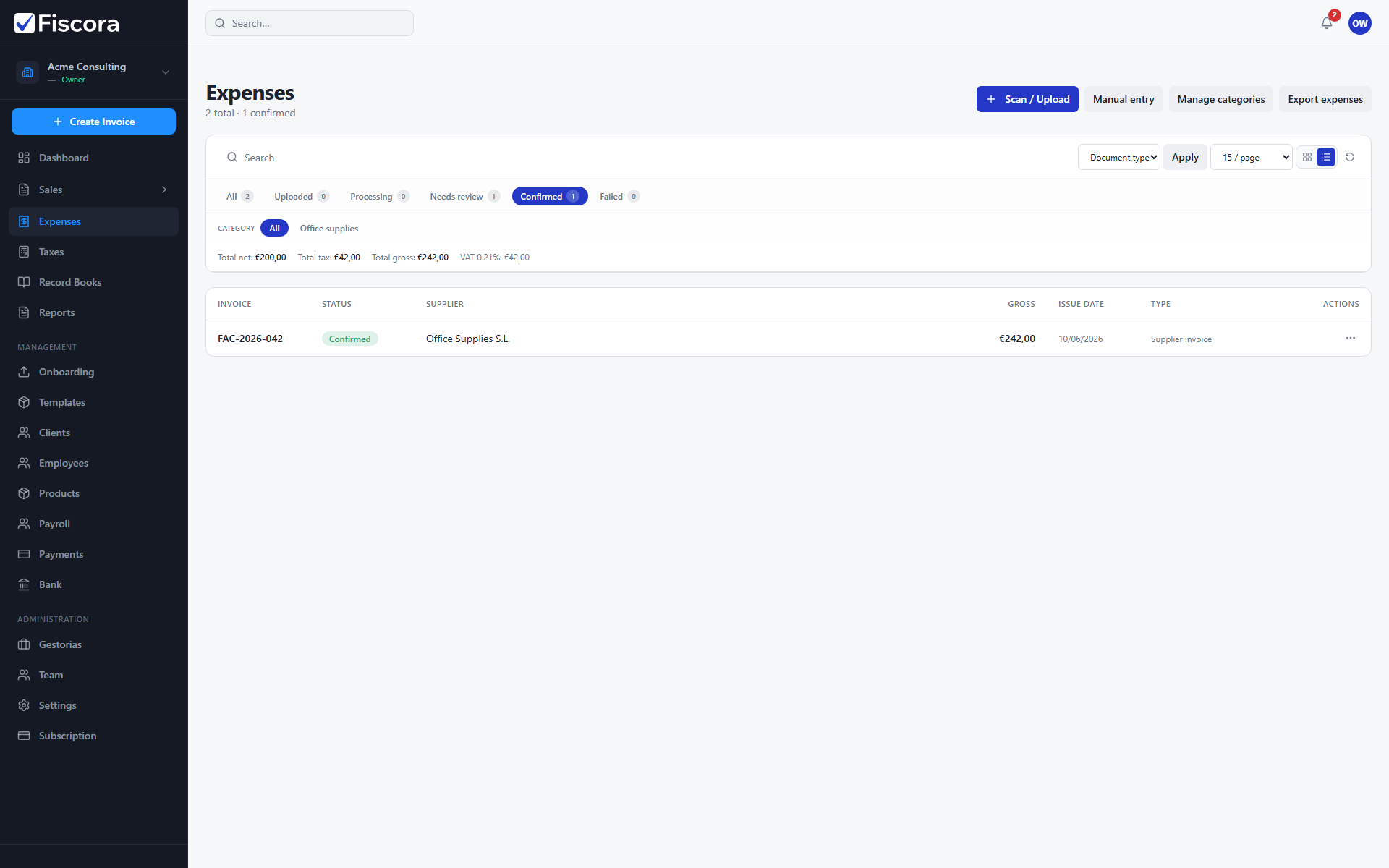
Expenses list with Confirmed status tab selected and filtered results.

Filter by status

  1. Open Expenses from the sidebar.
  2. Use the status tabs above the list.
  3. Select Confirmed to see finalized supplier records.
  4. Combine with search when you need a specific supplier or invoice number.

Was this article helpful?

Still need help?

Share the context and we'll reply with practical guidance from support.

Open request

You may also find these useful

Expenses

How to record and review expenses

Track uploaded receipts and supplier invoices, then review which expenses still need attention before confirmation.

Read article
Expenses

How to upload a receipt or bill

Add supplier documents through Scan / Upload so Fiscora can read them with AI, or enter an expense manually.

Read article
Expenses

How to enter an expense manually

Create a supplier expense without uploading a document by filling the manual entry form.

Read article