
The sidebar groups features by workflow, while your role controls whether you can only view data or also create and edit records. See where to find key actions in the workspace for a map of main areas.
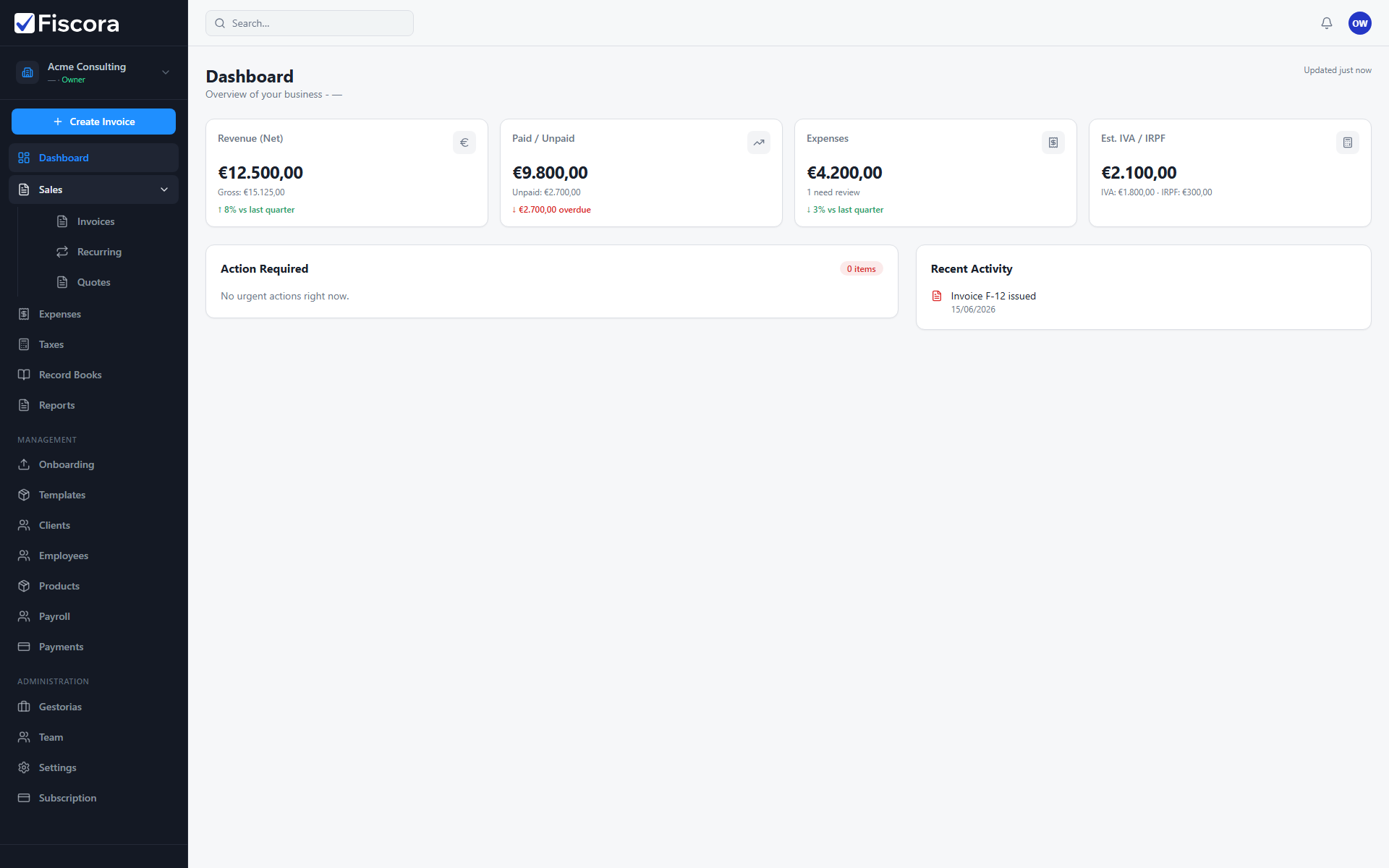
Main navigation areas
- Dashboard summarizes activity and required actions.
- Sales covers invoices, recurring billing, and quotes.
- Expenses, Taxes, and Reports handle operational and compliance work.
- Management includes clients, products, templates, and related records.
- Administration includes team, settings, billing, and gestorias for admins and owners.
Role overview
- Viewer can review data but cannot create or edit most records.
- Accountant can work with invoices, expenses, and clients within write permissions.
- Admin can manage team members, settings, and billing in addition to daily operations.
- Owner has full control over the organization, including sensitive settings.
When access looks different
- Some menu items appear only for admins and owners, such as Team or Billing.
- Gestoria connections may expose only the modules your firm was granted.
- If an action is missing, ask an admin to review your role or firm access scope.